How to Build an ATM Simulator in Scratch
July 24, 2026
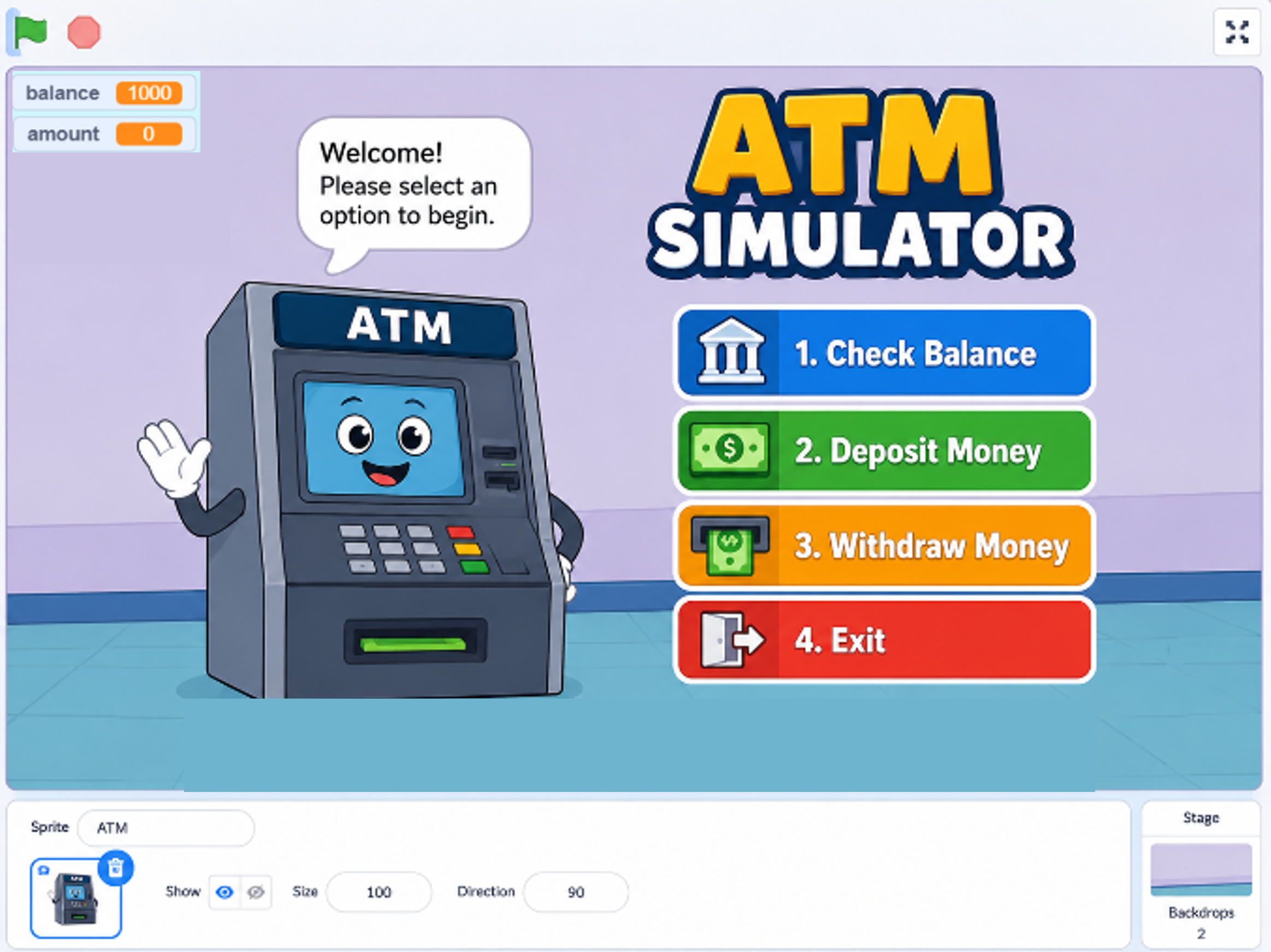
Learn how to build your own ATM Simulator in Scratch! This beginner-friendly project teaches variables, user input, conditional statements, arithmetic operators, and broadcast messages while helping you understand how real ATM machines work. It's a perfect project for beginners who want to improve their Scratch programming skills through a real-world application.
Introduction
Have you ever wondered how an ATM knows your balance, checks your PIN, or lets you withdraw money? While real ATMs use advanced banking systems, you can build a simplified version of one using Scratch. This project helps you understand how everyday technology works while learning essential programming concepts in a fun and interactive way.
In this tutorial, you'll create an ATM Simulator that allows users to enter a PIN, check their account balance, deposit money, and withdraw cash using Scratch's visual programming blocks. Whether you're just starting with Scratch or looking for your next coding challenge, this project is an excellent way to improve your programming skills.
What Is an ATM Simulator?
An ATM (Automated Teller Machine) helps people perform basic banking operations such as checking their account balance, depositing money, withdrawing cash, and verifying a secure PIN. In this Scratch project, you'll recreate these features using programming logic. Although it doesn't connect to a real bank, it behaves like a real ATM by accepting user input, processing information, and displaying the correct response.
What You'll Learn
By completing this Scratch project, you'll learn several important programming concepts used by real software developers.
- Use Variables to store the account balance, PIN, and transaction amount.
- Collect user input using the Ask and Wait block.
- Build decision-making logic using If/Else statements.
- Perform deposits and withdrawals using arithmetic operators.
- Organize large projects using Broadcast messages.
- Create a complete interactive ATM application from scratch.
Before You Start
Before building your ATM Simulator, make sure you're familiar with the basic Scratch interface and essential programming blocks.
- Creating a Scratch project
- Adding and editing sprites
- Using Variables
- Using Events
- Using Looks blocks
- Using Sensing blocks
- Using Control blocks
How the Project Works
Your ATM Simulator follows a simple workflow that mimics how a real ATM operates. The program verifies the user's PIN, displays a menu of banking options, performs the selected transaction, updates the account balance, and continues until the user chooses to exit.
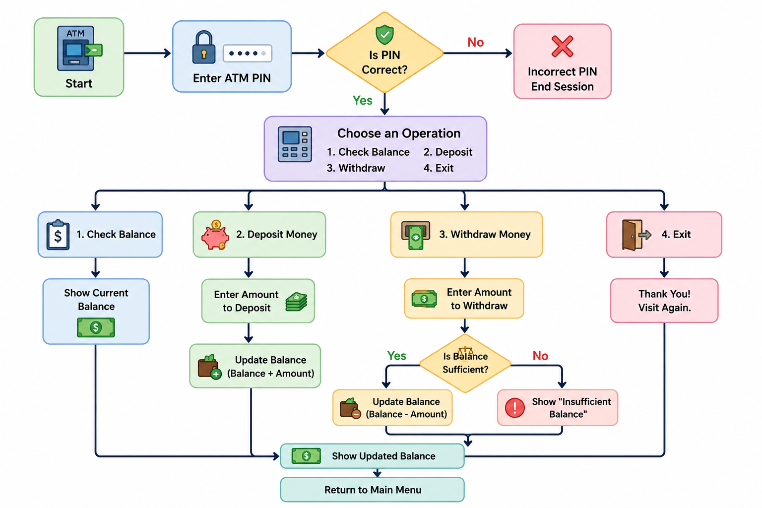
- The user enters the correct PIN.
- The ATM displays the main menu.
- The user selects an operation.
- The program performs the selected transaction.
- The updated balance is saved.
- The ATM returns to the main menu until the user exits.
Step 1: Set Up the ATM
Choose or design an ATM sprite that will interact with the user. This sprite will guide users through every banking operation by asking questions and displaying messages. You can also add an ATM background to make your project look more realistic.
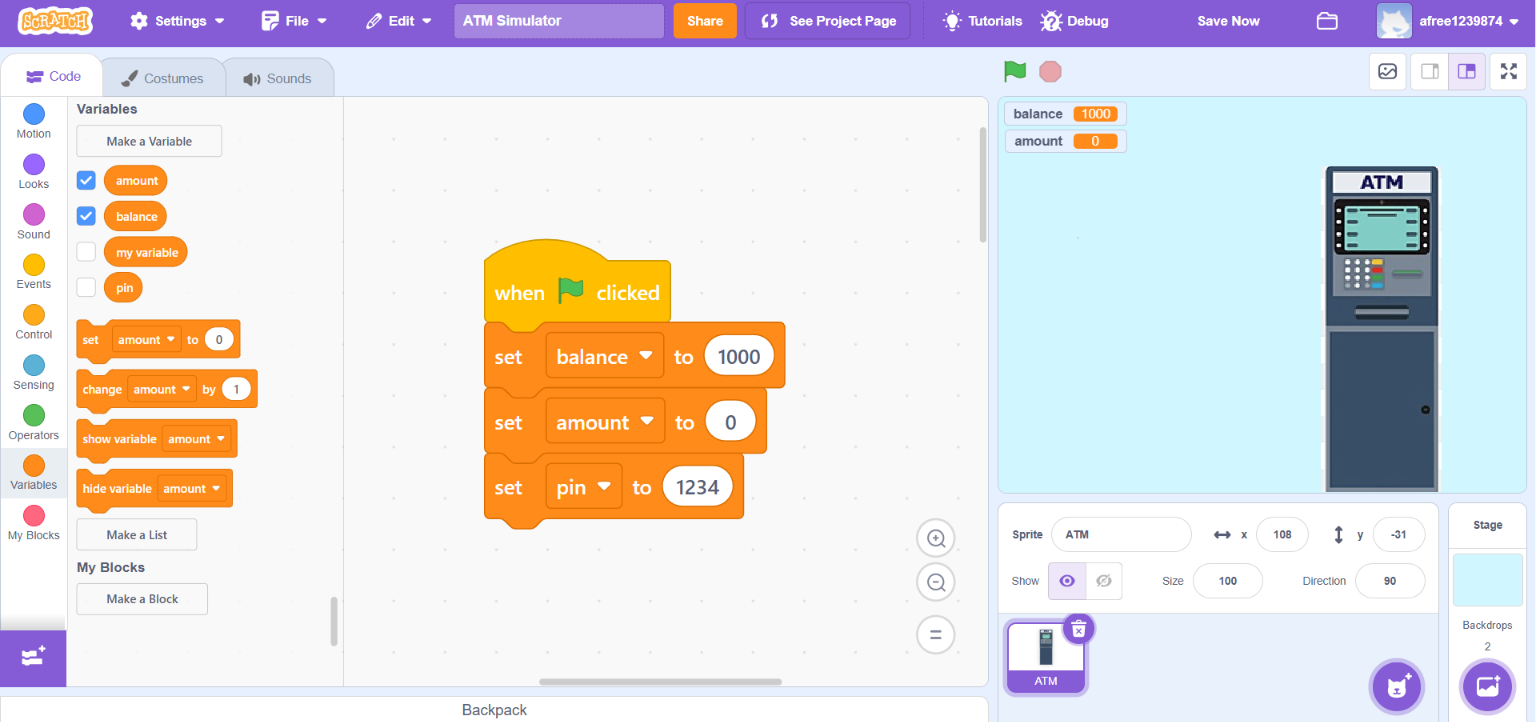
When the Green Flag is clicked, initialize your project by setting the starting account balance, creating variables for the Balance, PIN, and Amount, and asking the user to enter their PIN.
Step 2: Verify the PIN
Use the Ask and Wait block to request the user's PIN. Compare the entered value with the correct PIN using an If-Else block. This is one of the most important programming concepts because the program must decide what happens based on the user's input.
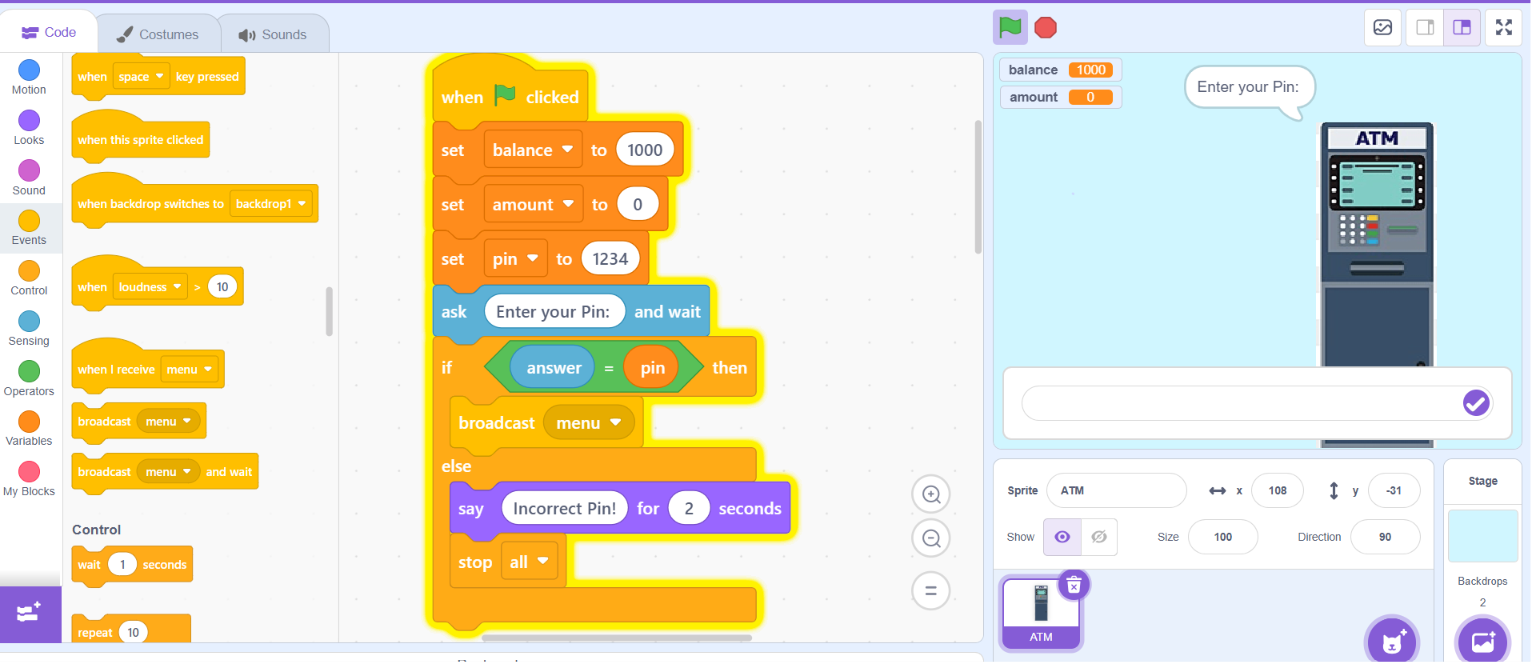
- Ask the user to enter the PIN.
- Compare the entered PIN with the stored PIN.
- If the PIN is correct, continue to the main menu.
- If the PIN is incorrect, display an error message.
- Stop the program or ask the user to try again.
verify-pin.txt
Step 3: Create the Main Menu
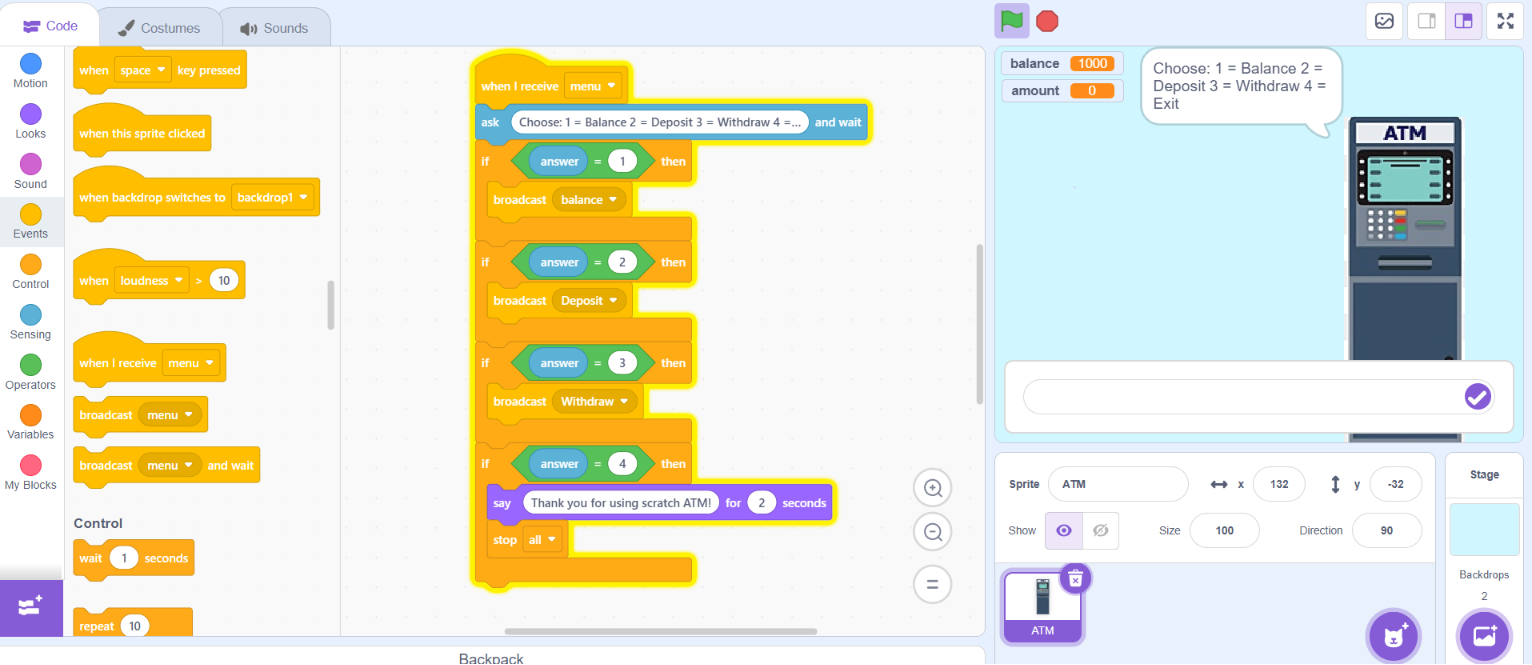
After the user enters the correct PIN, display the ATM's main menu. This menu allows users to choose which banking operation they would like to perform. Keeping the menu simple makes the program easy to use and understand.
- Check Balance
- Deposit Money
- Withdraw Money
- Exit
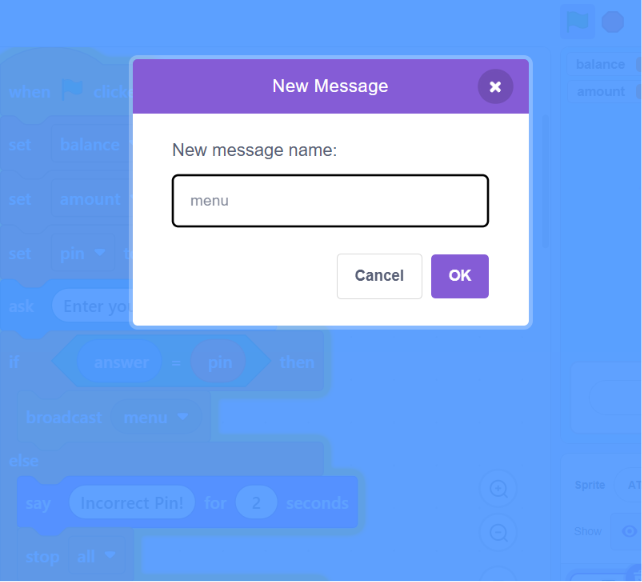
Use the Ask and Wait block to let the user choose an option. Based on the user's choice, broadcast different messages such as Check Balance, Deposit, or Withdraw. Broadcast blocks help organize large Scratch projects by separating each feature into its own script.
main-menu.txt
Step 4: Check Account Balance
When the user selects 'Check Balance', your ATM should display the current account balance using the Say block. Since the balance is stored inside a variable, Scratch can display the latest value whenever the user requests it.
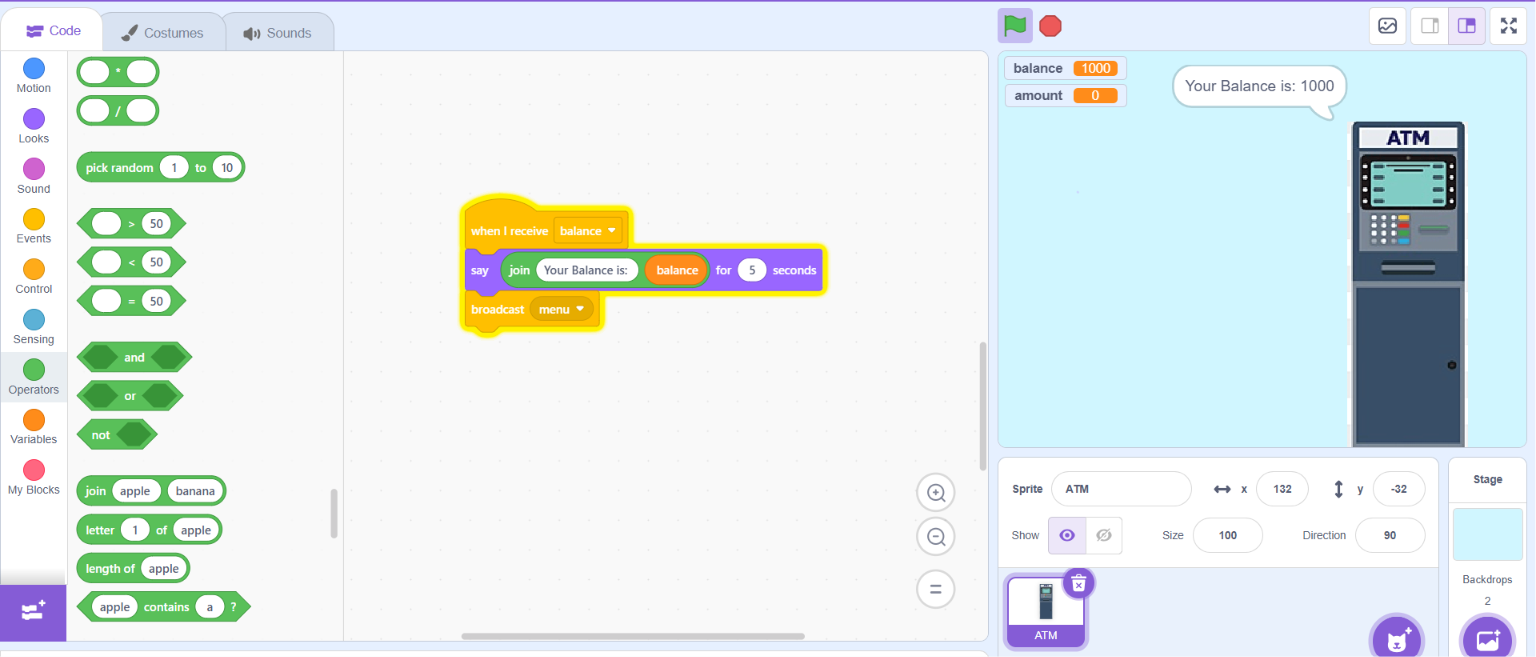
After showing the balance, return the user to the main menu so they can perform another transaction without restarting the project.
balance.txt
Step 5: Deposit Money
When the user selects Deposit Money, ask how much money they would like to deposit. Store the entered amount in a variable, add it to the existing balance, and then display the updated balance.
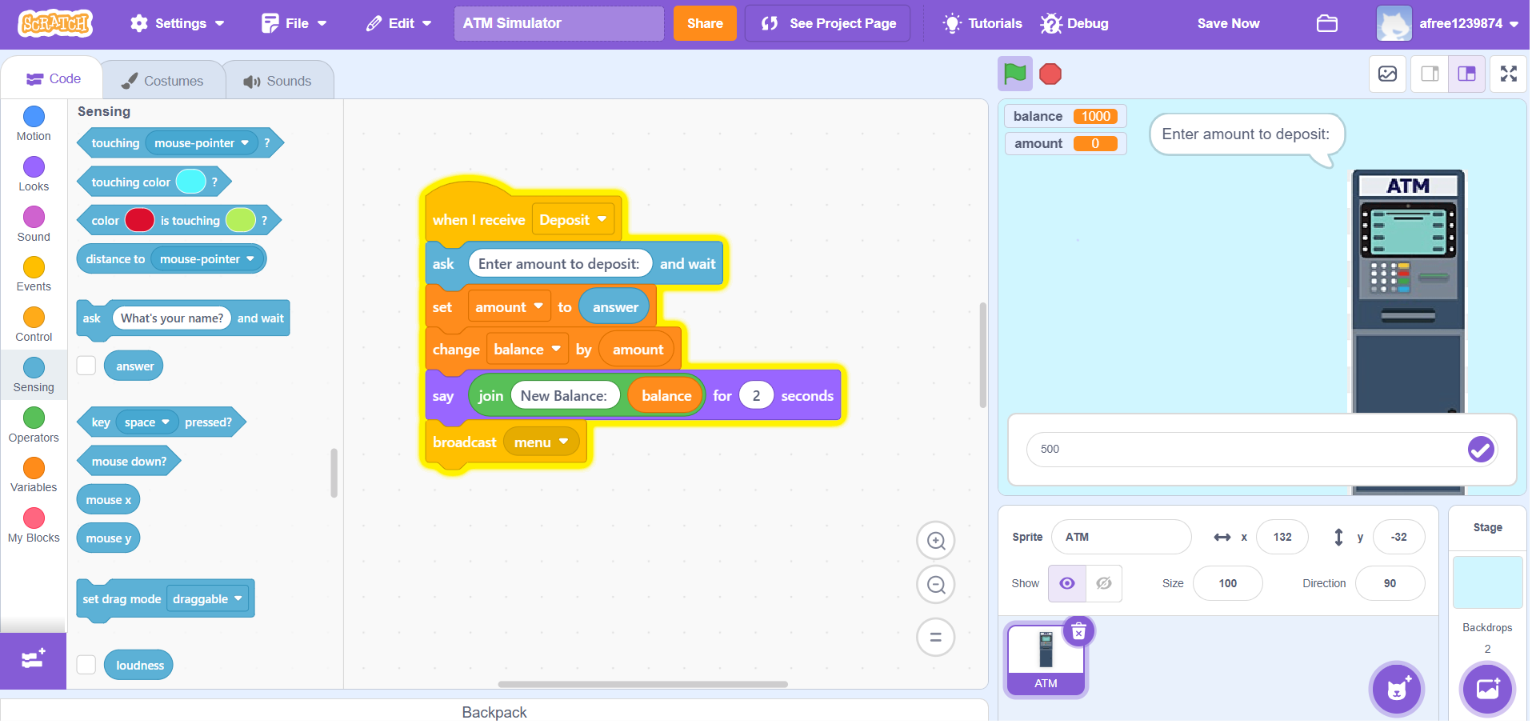
- Ask how much money the user wants to deposit.
- Store the amount in a variable.
- Add the amount to the current balance.
- Display the updated balance.
- Return to the main menu.
deposit.txt
Step 6: Withdraw Money
The Withdraw Money feature is one of the most important parts of your ATM Simulator. Before subtracting money from the account balance, your program should verify that sufficient funds are available. This mimics how real banking systems prevent overdrawing an account.
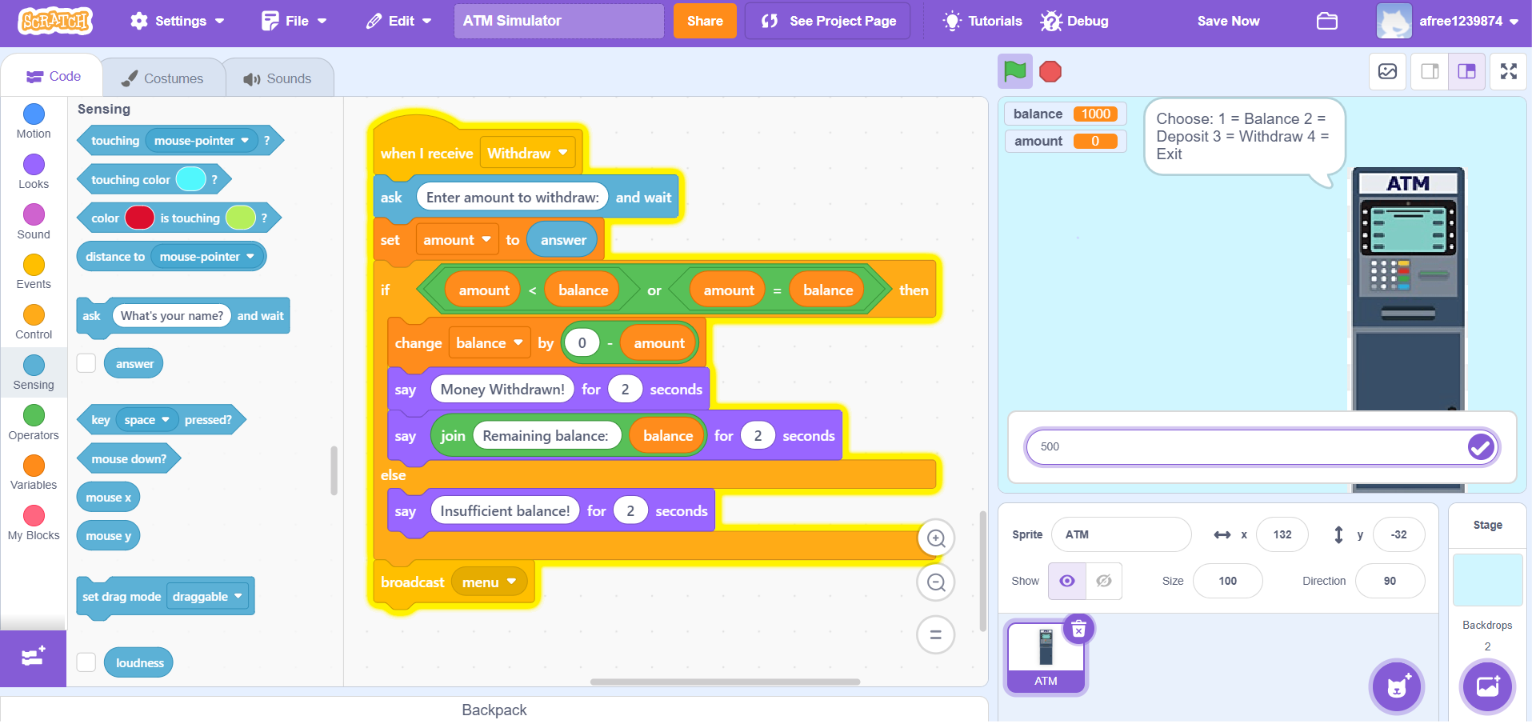
- Ask the user for the withdrawal amount.
- Compare the amount with the available balance.
- If sufficient funds exist, subtract the amount.
- Display the updated account balance.
- If the balance is insufficient, show an error message.
- Return to the main menu.
withdraw.txt
Programming Concepts Used
This project combines several important Scratch programming concepts that are widely used in software development.
| Scratch Feature | Purpose |
|---|---|
| Variables | Store balance, PIN and transaction amount |
| Ask and Wait | Collect user input |
| If / Else | Validate PIN and withdrawal conditions |
| Operators | Perform deposits and withdrawals |
| Broadcast | Navigate between ATM functions |
| Looks | Display messages to the user |
Conclusion
Congratulations! You have successfully built your own ATM Simulator in Scratch. Along the way, you've learned how to use variables, user input, operators, conditional statements, and broadcast messages to create an interactive banking application. These concepts are widely used in professional software development and form the foundation for learning advanced programming languages like Python and JavaScript.
Challenge yourself by adding new features such as PIN retry limits, money transfers, daily withdrawal limits, transaction history, or multiple user accounts. Every improvement you make helps you become a stronger programmer.
Try the ATM Simulator
Press green flag to start
🚀 Future Coders Program for Kids
Ready to Start Your Child's Future-Ready Tech Journey?
Empower your child with Coding, Artificial Intelligence, Web Development, Mobile Apps, Robotics, and Future-Ready Digital Skills through live interactive, project-based classes at TeacherColab.